How to migrate from cPanel shared hosting to a managed VPS
Most cPanel shared hosting migrations feel more complicated than they are. The technical process is straightforward. What makes people hesitate is the fear of downtime, the uncertainty about what happens to email, and the assumption that moving to a VPS means taking on server administration they didn't sign up for.
This guide covers the full migration process from cPanel shared hosting to a RemarkableCloud managed VPS: what we handle, what you do, what to test before switching DNS, and what changes for your business on the other side.
- Free migration is included on every Cloud Cube: RemarkableCloud moves your site, database, and email at no cost
- Your existing cPanel hosting stays live throughout the migration; there is no forced downtime window
- DNS propagation takes minutes to a few hours, and visitors always reach a working version of your site
- You do not need to know how to configure a server: that is what managed means
What actually needs to migrate
A cPanel shared hosting account typically contains several components, and each one moves differently. Understanding what is involved removes most of the anxiety around the process.
- Website files (HTML, PHP, WordPress files)
- Databases (MySQL/MariaDB)
- Email accounts and mailboxes
- DNS records
- SSL certificates
- Cron jobs
- Email forwarders and filters
- Subdomains and addon domains
- cPanel-specific configurations (rebuilt on new panel)
- Softaculous auto-installer records (apps themselves migrate fine)
- cPanel email statistics and logs
- Hosting account credentials (you get new ones)
- Any data specific to your old host's proprietary tools
The website, database, and email content (everything that matters to your visitors and business) all migrates cleanly. The only things that don't transfer are configuration artifacts tied to cPanel itself, and those get rebuilt on the new environment.
The migration process, step by step
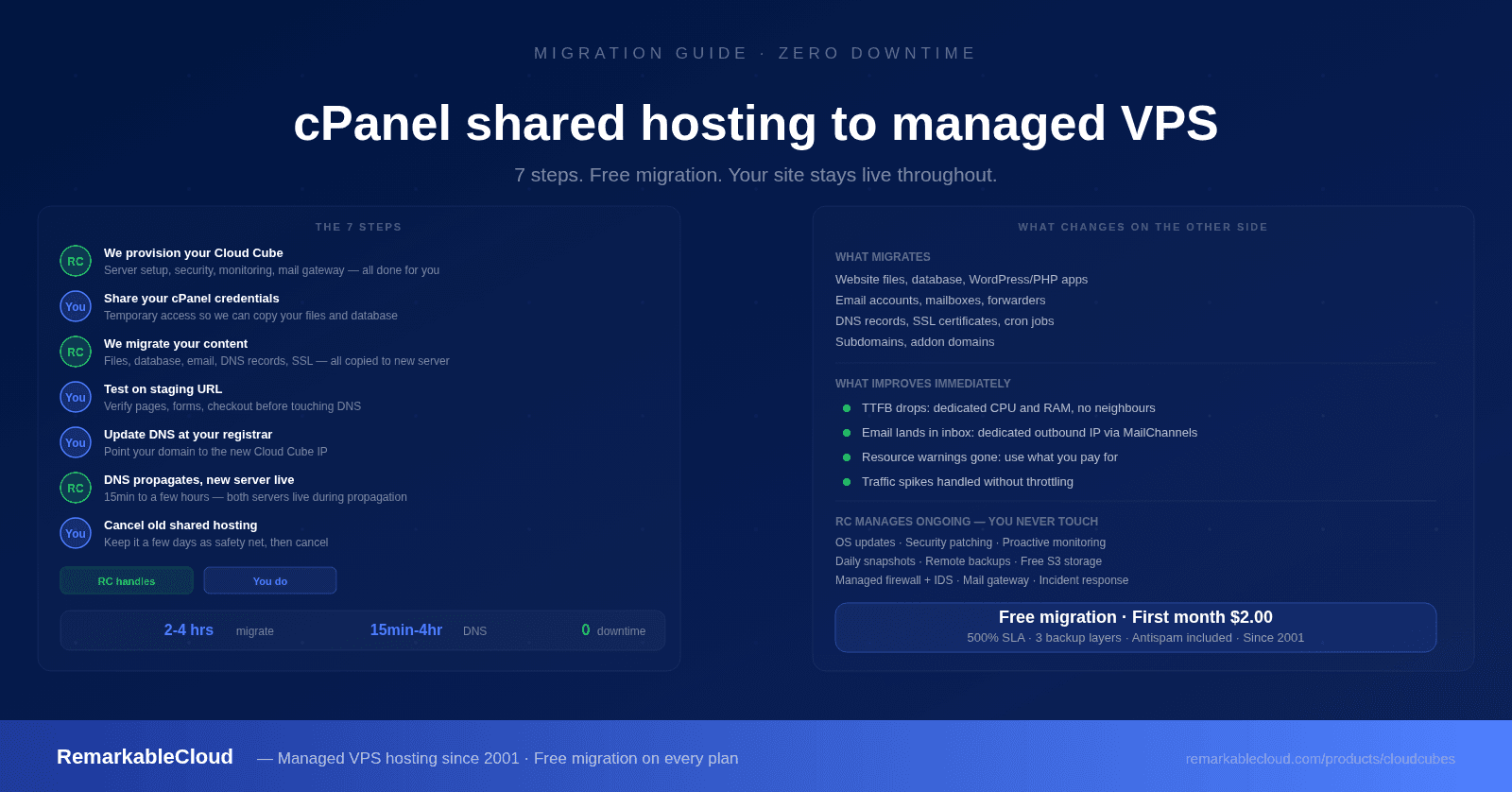
Green steps are handled by RemarkableCloud. Blue steps are yours. Most migrations involve very little on your side.
We provision your Cloud Cube
After you order, we set up your server: OS installation, security hardening, managed firewall, IDS, monitoring, mail gateway configuration (MailChannels outbound + Rspamd inbound), and backup systems. RemarkablePanel is configured and your first account is created.
You don't touch any of this. When it's done, you receive login credentials for RemarkablePanel and SSH access.
Provide your cPanel credentials
We need access to your existing cPanel account to copy your files, database, and email. You can share:
- cPanel username and password, or
- A full cPanel backup file if you prefer to generate it yourself
Your current hosting stays completely live during this step. Nothing is deleted or moved: everything is copied.
We migrate your content
We copy your website files, database, email accounts and mailboxes, DNS records, SSL certificates, and cron jobs to your new Cloud Cube. WordPress sites, WooCommerce stores, Laravel applications, and custom PHP applications all migrate the same way: we copy the files and database, configure the web server, and verify everything runs correctly on the new environment before telling you it's ready.
Test your site on the new server
Before changing DNS, we give you a temporary URL to access your site on the new server. This is where you verify everything works correctly:
- All pages load and display correctly
- Contact forms submit and send email
- For WooCommerce: add a product to cart, go through checkout (use a test payment or a low-value order)
- Login to your WordPress admin and confirm plugins are active
- Check any functionality that connects to an external service (payment gateways, CRMs, APIs)
Do not skip this step. Testing on the staging URL costs nothing and prevents the only scenario where a migration causes visible problems for your visitors.
One thing to be aware of when testing forms and email: on the staging URL, your site thinks it is at a different address. Email sent during testing goes through your new mail gateway and delivers correctly, but reply-to addresses and links in those emails may reference the staging URL rather than your domain. This is expected and resolves automatically once DNS points to the new server.
Update your DNS
When you are satisfied that everything works on the new server, update your domain's DNS records to point to your new Cloud Cube IP address. You do this at your domain registrar (GoDaddy, Namecheap, Google Domains, or wherever your domain is registered, not at your hosting provider).
The records to update are typically your A record (for the root domain) and the www CNAME or A record. We provide the exact values to use.
If you are unfamiliar with DNS management, we can walk you through this step or do it for you if you give us registrar access.
DNS propagates, new server takes over
DNS propagation typically completes in 15 minutes to a few hours depending on your registrar and the previous TTL setting. During this window, some visitors reach the old server and some reach the new one, and both are live and both serve a working version of your site. There is no gap where visitors see an error.
We monitor the new server throughout propagation and confirm when your domain is fully resolving to the new IP.
Cancel your old shared hosting
Once DNS has fully propagated and you have confirmed everything is running correctly on the new server, cancel your cPanel shared hosting plan. Keep it active for a few days after cutover as a safety net, the files are still there if you need to retrieve anything, then cancel at your convenience.
Do not cancel before DNS propagation completes.
How long does it take
Larger migrations (multiple domains, large databases, high email volume) take longer. Complex custom applications may require additional testing time. For most standard WordPress, WooCommerce, or PHP sites, the total elapsed time from order to live on the new server is under 24 hours.
What your email setup looks like after migration
Email is the part of a cPanel migration that causes the most questions. Here is what happens:
Your email accounts and mailboxes migrate to the new server. The email addresses stay the same. Your mail client settings (IMAP/POP3 server and SMTP settings) update to point to your new server IP, which we provide after migration. Most mail clients update automatically once DNS propagates.
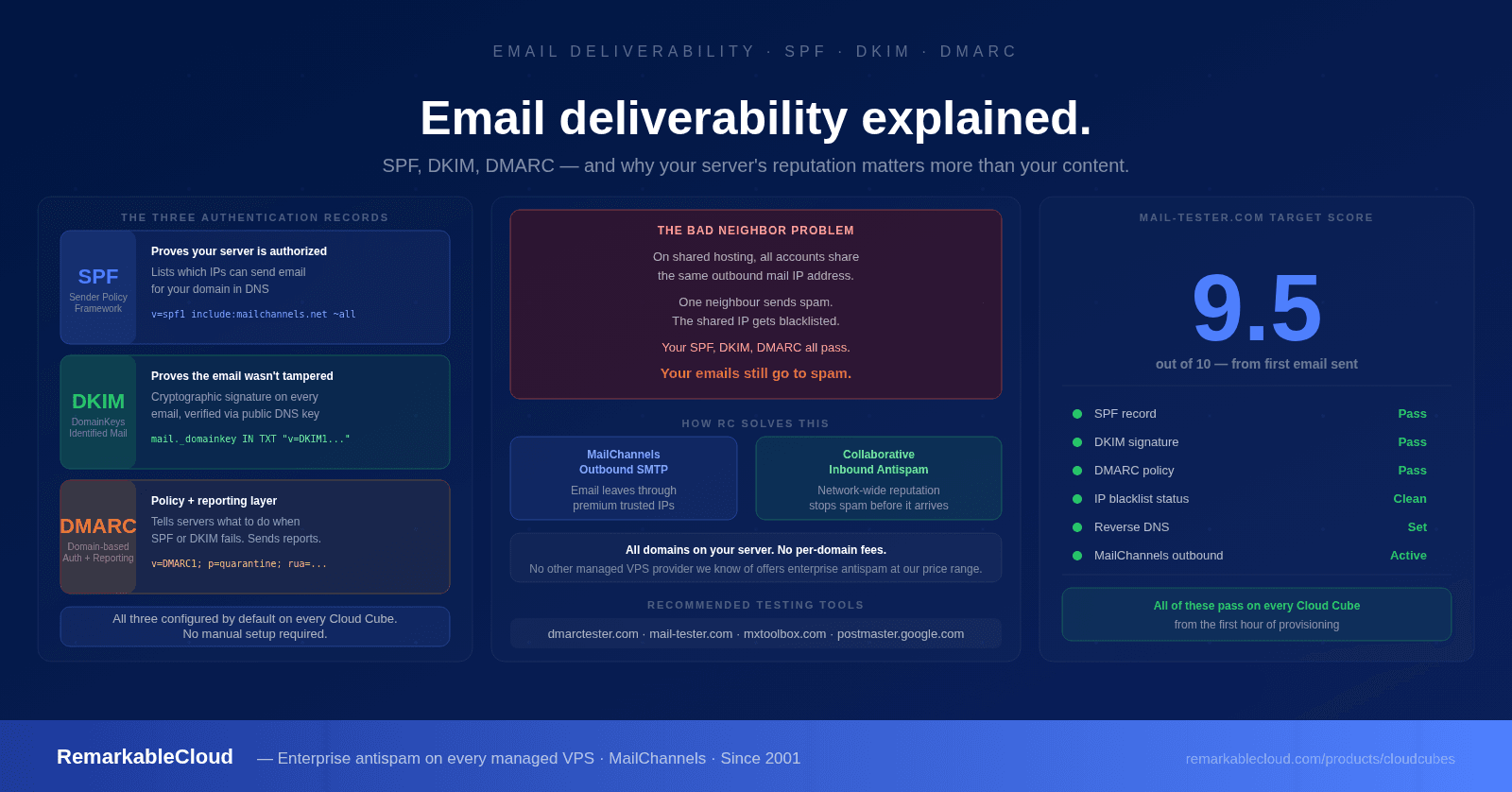
Outbound email from your new server goes through MailChannels SMTP, which provides a clean dedicated sending IP and significantly better delivery rates than most shared hosting environments. If your emails were landing in spam on shared hosting due to a shared outbound IP, that problem resolves on the new server.
Inbound email is filtered through Rspamd before it reaches your mailbox. Both layers are included at no extra cost, covering every domain on your server.
What changes after the migration
Performance is the most immediately visible change. A site that was competing for CPU and RAM with dozens of neighbours on a shared server now has dedicated resources that belong entirely to it. For WordPress and WooCommerce sites, the difference in Time to First Byte is usually measurable within the first hour.
Email deliverability typically improves. Moving from a shared hosting outbound IP (with its shared reputation and neighbour risk) to a dedicated mail gateway with clean reputation means fewer messages landing in spam.
Resource warnings disappear. There are no fair-use CPU caps, no "your account has exceeded its limits" emails, no throttling during peak hours.
What does not change: your domain, your email addresses, your WordPress admin workflow, your site's files and database. The infrastructure underneath changes. The experience of managing your site day to day does not.
Who manages the server after migration
RemarkableCloud does. That is the definition of a managed Cloud Cube. After migration, our team handles:
- OS and kernel updates
- Security patching
- Proactive 24/7 monitoring
- Daily snapshots
- Remote offsite backups
- Firewall and IDS management
- Mail gateway maintenance
- Incident response
- Your website content
- WordPress updates (plugins, themes, core)
- Email account management
- Domain and DNS settings
- Your applications and their configurations
You have full root access if you need it. The managed service does not restrict what you can install or configure. It means someone else is watching the server and responding to issues, whether or not you are awake, whether or not you are aware there is an issue.
Free migration on every Cloud Cube. First month from $2.00. No contracts.
See Cloud Cube plans →Move from shared hosting to a managed VPS. We handle the migration.
Dedicated resources, 500% SLA, three backup layers, free antispam, free migration. Managed since 2001. First month from $2.00.
See Cloud Cube plans