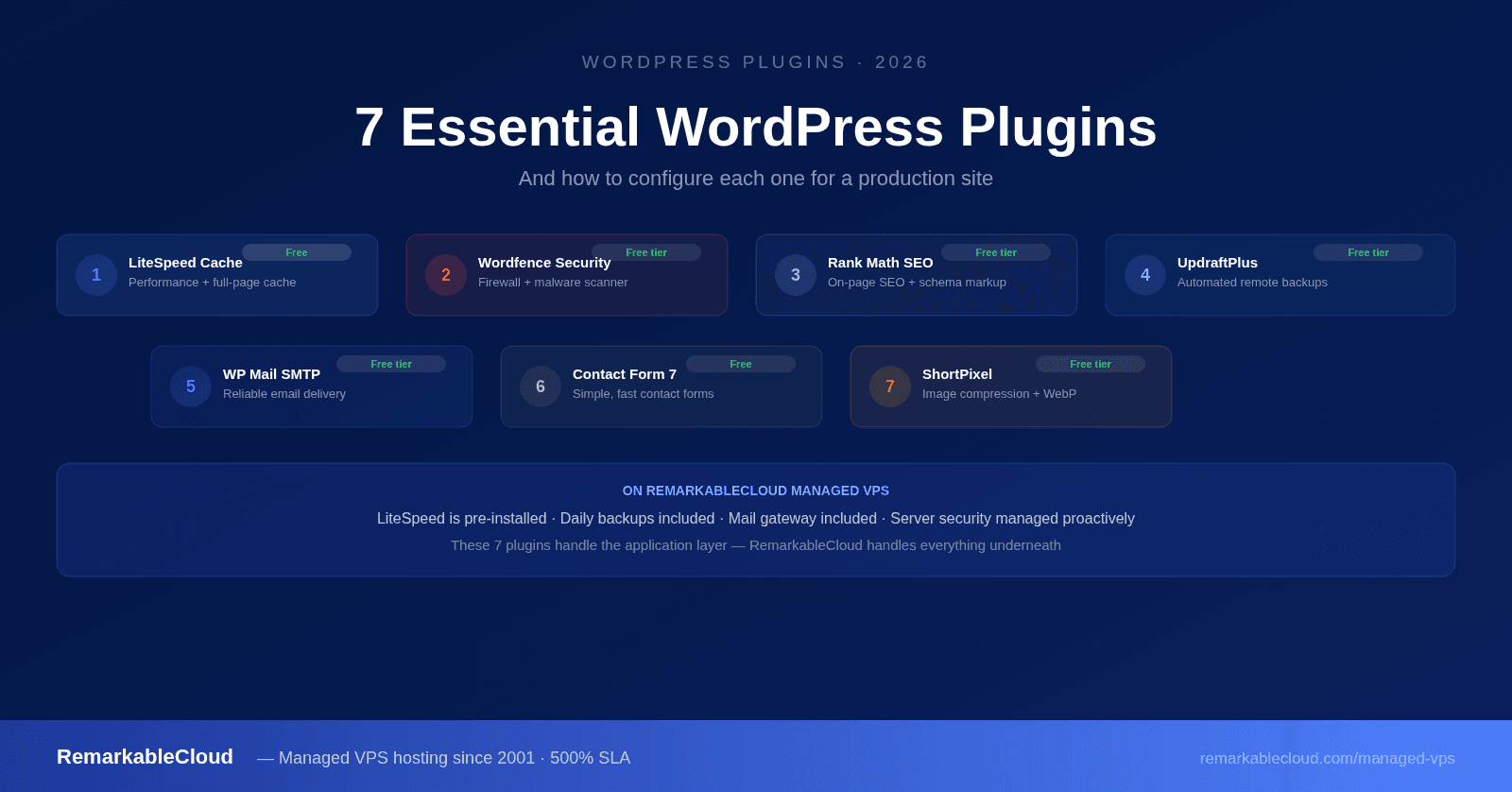
7 essential WordPress plugins in 2026 — and how to configure each one
There are over 60,000 plugins in the WordPress repository. Most of them you'll never need. But a small set covers the fundamentals that every WordPress site requires — performance, security, SEO, backups, email delivery, and contact forms.
This guide covers the 7 plugins we recommend installing on every WordPress site, with specific configuration guidance for each. Not just "install this and you're done" — but the settings that actually matter and why they matter on a real production server.
- LiteSpeed Cache — performance and full-page caching
- Wordfence Security — firewall and malware scanning
- Rank Math SEO — on-page SEO and schema
- UpdraftPlus — automated backups
- WP Mail SMTP — reliable email delivery
- Contact Form 7 — contact forms
- ShortPixel — image optimization
A note on plugin count
More plugins means more code running on every page load, more potential security vulnerabilities, and more things to keep updated. The goal is a small, well-chosen set that covers every critical need — not a plugin for every minor feature. Each plugin on this list earns its place by covering something no other plugin on the list handles, and by being the best-maintained option in its category.
LiteSpeed Cache is the most capable free caching plugin available for WordPress — and on a LiteSpeed server it has direct server-level integration that no other caching plugin can match. It handles full-page caching, CSS/JS minification and combination, image lazy loading, WebP conversion, database optimization, and CDN integration in a single plugin.
On a LiteSpeed-powered server (which RemarkableCloud uses), the caching operates at the web server level — served before PHP even runs. The performance difference over W3 Total Cache or WP Super Cache on equivalent hardware is significant and measurable.
- Cache → Enable Cache: On. This is the most important setting — everything else builds on it.
- Cache → Cache Logged-in Users: Off for most sites. On only if you need personalized cached pages.
- Page Optimize → CSS/JS Minify: Enable both. Test your site after — occasionally breaks scripts.
- Page Optimize → Combine CSS/JS: Enable, but test thoroughly on WooCommerce sites.
- Image Optimize → WebP: Enable WebP replacement — browsers that support it get smaller files automatically.
- Image Optimize → Lazy Load: Enable for images and iframes.
- CDN → CDN URL: Add your BunnyCDN pull zone URL here if you're using a CDN.
Wordfence is the most widely used WordPress security plugin, installed on over 5 million sites. It provides a web application firewall (WAF) that blocks malicious traffic before it reaches your application, a malware scanner that checks your files against known WordPress malware signatures, and login security tools including two-factor authentication and brute-force protection.
The free tier covers the core firewall and scanner — more than enough for most WordPress sites. The paid version gets real-time firewall rule updates (30 days ahead of the free version) which matters for high-value targets.
- Firewall → Optimized Protection: Run the setup wizard to install the firewall in extended mode (runs before WordPress loads). This is significantly more effective than the basic mode.
- Firewall → Rate Limiting: Set "Immediately block fake Googlebots" to On. Set crawlers exceeding page limits to Throttle.
- Login Security → Enable 2FA: At minimum for all admin accounts. Takes 2 minutes to set up and blocks most account takeover attempts.
- Login Security → Login Page CAPTCHA: Enable to stop automated brute-force attempts.
- Scan → Schedule: Set automatic scans to run weekly minimum. Daily for higher-traffic sites.
- Tools → Block the following countries: Use this carefully — only block regions you have no legitimate visitors from.
Rank Math has become the leading SEO plugin for WordPress, overtaking Yoast for most new installs due to its more generous free tier and cleaner interface. It handles on-page SEO analysis, XML sitemaps, structured data/schema markup, Google Search Console integration, and 404 monitoring — all in the free version. The pro version adds keyword rank tracking and detailed analytics.
The practical difference between Rank Math and Yoast in day-to-day use comes down to schema markup: Rank Math generates structured data for articles, FAQs, products, recipes, and more without requiring the paid version. For sites targeting rich results in Google, this is the version to install.
- Setup Wizard: Run the full wizard — it connects to Google Search Console, configures sitemaps, and sets breadcrumbs in one flow. Don't skip it.
- General Settings → Links → Nofollow External Links: Enable if you link to external sites regularly and don't want to pass link equity.
- Titles and Meta → Global Meta → Separator: Set your title separator character and verify your homepage title and meta description.
- Sitemap → Include Images: On. Google indexes images separately — don't exclude them.
- Schema → Article Type: Set default schema type for your post type. Blog posts should be BlogPosting, news should be NewsArticle.
- Per post: Set the focus keyword for every post you publish. Rank Math's content analysis runs against it and guides your writing toward the right keyword density and usage.
UpdraftPlus is the most widely used WordPress backup plugin, with over 3 million active installs. The free version handles scheduled backups of your database and files, with remote storage support for Google Drive, Dropbox, Amazon S3, and several other destinations. The paid version adds incremental backups, multisite support, and one-click migration.
The critical concept with backups is offsite storage. A backup sitting on the same server as your website is not a backup — it goes down with the server. Always configure UpdraftPlus to send backups to a remote destination, and always test restores periodically. A backup you've never tested is a backup of unknown reliability.
- Backup schedule: Database daily, files weekly minimum. For active sites: database every 4–6 hours, files daily.
- Remote storage: Configure at least one remote destination — Google Drive and Dropbox are the easiest to set up on the free tier. S3-compatible storage (including RC's free S3 backup storage) is the most reliable.
- Retain backups: Keep at least 7 daily and 4 weekly backups. Storage is cheap; losing a week of data is not.
- Email reports: Enable backup confirmation emails. If you stop getting them, something has broken silently.
- Test restore: After your first successful backup, run a test restore to a staging environment. Do this quarterly.
By default, WordPress sends email using PHP's mail() function — which uses the server's own IP address to send. This is a problem because most server IP addresses are not specifically configured for email delivery, which means your contact form submissions, order confirmations, password resets, and notifications frequently end up in spam or don't arrive at all.
WP Mail SMTP replaces PHP mail() with a proper SMTP connection to a configured mail service. This one change — taking 10 minutes to configure — fixes the email deliverability problem that affects a large percentage of WordPress sites silently.
- Mailer selection: The free tier supports Gmail SMTP, Outlook, SendLayer, and several others. For production sites, use a dedicated transactional email service — SendGrid, Postmark, or Brevo all have generous free tiers.
- From Email: Set to an address on your domain (yourname@yourdomain.com) — not a personal Gmail. This affects deliverability and professionalism.
- From Name: Your site or business name — not "WordPress".
- Send a test email: Always send a test from WP Mail SMTP → Tools → Email Test after configuring. Check that it arrives and lands in the inbox, not spam.
- Email logging (Pro): If you upgrade, enable email logging to track delivery status of every email your site sends.
Contact Form 7 has been the standard WordPress contact form plugin since 2007 and has over 10 million active installs. It is deliberately minimal — text-based shortcode configuration, no visual builder, no drag-and-drop. That simplicity is exactly why it belongs on this list: it's fast, well-maintained, broadly compatible, and has zero performance overhead when no form is rendered on the page.
For those who want a visual builder, WPForms (free tier) is a strong alternative. But for a simple contact form on a fast-loading site, Contact Form 7 adds the least overhead of any option.
- CAPTCHA: Add reCAPTCHA v3 integration under CF7 → Integration → reCAPTCHA. Without this, your form will receive spam submissions almost immediately after going live.
- Mail settings: Set the From field to a no-reply address on your domain (no-reply@yourdomain.com). Set To to the address that should receive submissions. Use [your-email] as the Reply-To so you can reply directly to the sender.
- Load CSS/JS only when needed: By default CF7 loads its scripts on every page. Add this to your functions.php to load only on pages with a form: add_filter('wpcf7_load_js', '__return_false'); and enqueue manually on the contact page.
- Test submission: Submit a test contact to verify the email arrives and the thank-you message displays correctly.
Images are typically the largest contributors to page weight on WordPress sites. An unoptimized image library — large JPEGs uploaded straight from a camera or design tool — will slow down your site regardless of how well everything else is configured. ShortPixel compresses images automatically on upload, converts to WebP where supported, and can bulk-optimize your existing media library.
The free tier gives you 100 image credits per month. For a small to medium site that's usually sufficient. For sites with heavy image upload volume, the paid plans are reasonably priced and the performance return is significant — typically 40–70% file size reduction with no visible quality loss.
- Compression type: Glossy is the best default for most sites — it achieves strong compression while keeping images visually indistinguishable from the original. Lossless is for images where pixel accuracy matters (product photography, medical, technical diagrams).
- WebP: Enable WebP delivery. ShortPixel serves WebP to supporting browsers automatically and falls back to the original format for older browsers.
- Resize large images: Set a maximum dimension (e.g., 2000px wide) for uploaded images. Uploading 6000px wide photos from a camera and displaying them at 800px wastes storage and bandwidth.
- Bulk optimize: After activation, run the bulk optimizer on your existing media library. This is a one-time process and usually takes a few minutes to a few hours depending on library size.
- LiteSpeed Cache compatibility: If you're using LiteSpeed Cache, use either its WebP feature or ShortPixel's — not both. They do the same job. ShortPixel's standalone WebP is more thorough; LiteSpeed Cache's is faster for on-the-fly conversion.
Quick reference: all 7 plugins
| Plugin | Category | Free tier | Priority |
|---|---|---|---|
| LiteSpeed Cache | Performance | Full — no paid version needed | Install first |
| Wordfence Security | Security | Core WAF + scanner | Install first |
| Rank Math SEO | SEO | Generous — schema included | Before publishing |
| UpdraftPlus | Backups | Scheduled + remote storage | Before going live |
| WP Mail SMTP | Core SMTP setup | Before going live | |
| Contact Form 7 | Forms | Fully free | When needed |
| ShortPixel | Images | 100 credits/month | After launch |
The install order that matters
Plugin install order isn't always obvious but it does affect your workflow. Here's the sequence that avoids problems:
- Rank Math first — so it's configured before you publish any content. Schema and metadata set up correctly from post one.
- Wordfence second — so the firewall is active before the site is publicly accessible.
- WP Mail SMTP third — so email works before you need it (contact forms, user registrations, WooCommerce orders).
- UpdraftPlus fourth — take a full backup of the clean installation before adding more plugins or content.
- Contact Form 7 fifth — configure your contact form after email delivery is working.
- LiteSpeed Cache sixth — configure caching after content and plugins are stable. Caching a broken site caches the brokenness.
- ShortPixel last — run bulk optimization after your content library is populated.
Running WordPress on a managed VPS means your server, security patches, mail gateway, and backups are already handled. These 7 plugins handle the application layer — the two work together.
See managed VPS plans →A well-configured WordPress site starts with a well-managed server
RemarkableCloud's managed VPS includes LiteSpeed, proactive security monitoring, daily backups, and a free mail gateway on every plan. From $2 your first month.
See all plans